 7 Data Recovery
 By participating in this community, you agree to our
Privacy Policy and Forum Rules.
How can I fix corrupted files on my computer in simple steps?

Quote from OhioTom on January 15, 2026, 11:23 amHey everyone, I’ve got a few files on my Win11 PC that just won’t open , seem to be corrupted.
Ayone knows how to fix corrupted files on Windows 11? Maybe some utility or software I can download that works? Open to anything free or paid, just want to recover a couple of files if possible.
Thanks in advance!!!!
Hey everyone, I’ve got a few files on my Win11 PC that just won’t open , seem to be corrupted.
Ayone knows how to fix corrupted files on Windows 11? Maybe some utility or software I can download that works? Open to anything free or paid, just want to recover a couple of files if possible.
Thanks in advance!!!!

Quote from bryan on January 26, 2026, 3:07 pmYou didn’t give us anything to work with. What files are you talking about exactly? Word docs? Videos? Windows system files? Are they on your desktop or external drive? Did they just stop opening out of nowhere or was there a crash, power cut, malware-related corruption?
Are you asking about something general, like some universal tool to fix a corrupted file no matter what type? (those don’t exist)
If you want help figuring out how to fix corrupted files, we need context. Different files break for different reasons. A corrupted photo needs a different fix than a missing system DLL.
Nobody here can tell you how to fix your issue if we don’t even know what kind of file you’re trying to repair.
You didn’t give us anything to work with. What files are you talking about exactly? Word docs? Videos? Windows system files? Are they on your desktop or external drive? Did they just stop opening out of nowhere or was there a crash, power cut, malware-related corruption?
Are you asking about something general, like some universal tool to fix a corrupted file no matter what type? (those don’t exist)
If you want help figuring out how to fix corrupted files, we need context. Different files break for different reasons. A corrupted photo needs a different fix than a missing system DLL.
Nobody here can tell you how to fix your issue if we don’t even know what kind of file you’re trying to repair.

Quote from DataNerd on January 26, 2026, 4:51 pmI’m actually looking for the same thing right now. I’ve got a USB stick with couple of corrupted files: old Word documents in DOC format and a few MOV video clips from years ago.
I tried opening them on two different computers, same result. The Word files just throw an error in Word, and the videos won’t play in VLC or anything else.
I’ve been poking around trying to figure out how to fix corrupted files Windows 10 style, but it's a real mess. Half the guides are ads, the other half say "just restore from backup" like that’s somehow helpful when you don’t have one ¯\_(ツ)_/¯
I’m actually looking for the same thing right now. I’ve got a USB stick with couple of corrupted files: old Word documents in DOC format and a few MOV video clips from years ago.
I tried opening them on two different computers, same result. The Word files just throw an error in Word, and the videos won’t play in VLC or anything else.
I’ve been poking around trying to figure out how to fix corrupted files Windows 10 style, but it's a real mess. Half the guides are ads, the other half say "just restore from backup" like that’s somehow helpful when you don’t have one ¯\_(ツ)_/¯
Quote from bryan on January 27, 2026, 12:42 pm@datanerd
If we’re talking about mov files and you’ve already tried VLC, I’d suggest giving this online repair tool a shot: https://repair.cleverfiles.com/. It’s free and I’ve used it a couple of times on corrupted mp4 files from my camera, worked great for me.
For the Word docs, try opening them in Word and saving to a different file type like docx or pdf (if Word lets you)_. Sometimes that bypasses whatever’s causing the file to break. Not a guaranteed fix but migh as well try.
@datanerd
If we’re talking about mov files and you’ve already tried VLC, I’d suggest giving this online repair tool a shot: https://repair.cleverfiles.com/. It’s free and I’ve used it a couple of times on corrupted mp4 files from my camera, worked great for me.
For the Word docs, try opening them in Word and saving to a different file type like docx or pdf (if Word lets you)_. Sometimes that bypasses whatever’s causing the file to break. Not a guaranteed fix but migh as well try.

Quote from Ryan404 on January 27, 2026, 1:09 pm@ohiotom I had a similar issue a few months ago where a few files suddenly got corrupted. One of them was a project file I really needed. What worked for me was File History. I didn’t even realize it was turned on, but Windows had saved earlier versions of the file automatically
Just right-clicked the file > Properties > Previous Versions, and there was an older copy from a couple days before the corruption. Opened fine, with no issues. So, if you have Backup and Restore or File History enabled, you might be able to roll back to a clean version of the file without messing with repair tools.
@ohiotom I had a similar issue a few months ago where a few files suddenly got corrupted. One of them was a project file I really needed. What worked for me was File History. I didn’t even realize it was turned on, but Windows had saved earlier versions of the file automatically
Just right-clicked the file > Properties > Previous Versions, and there was an older copy from a couple days before the corruption. Opened fine, with no issues. So, if you have Backup and Restore or File History enabled, you might be able to roll back to a clean version of the file without messing with repair tools.
Quote from OhioTom on January 27, 2026, 1:16 pm@bryan Sorry, I should’ve been more specific. I’ve got a folder full of png files, and like half of them show this message when I try to open them.
No error, nothing else just that.I know they used to work. Not sure what caused it, maybe something happened during a transfer or with the drive I pulled them from.
Any ideas? How do I fix corrupted files like this one?
@bryan Sorry, I should’ve been more specific. I’ve got a folder full of png files, and like half of them show this message when I try to open them.

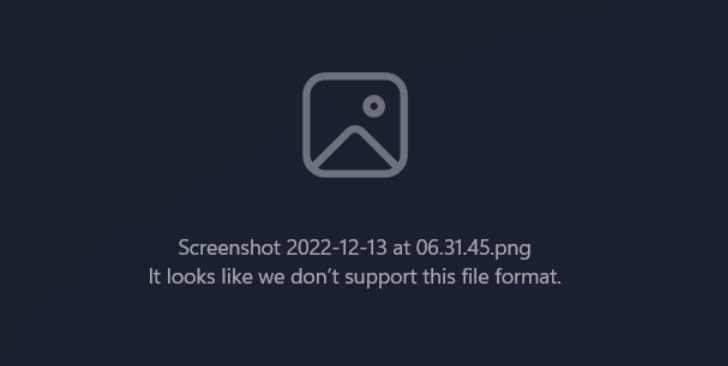
No error, nothing else just that.
I know they used to work. Not sure what caused it, maybe something happened during a transfer or with the drive I pulled them from.
Any ideas? How do I fix corrupted files like this one?

Quote from JohnMiller on January 27, 2026, 1:33 pmI’ve seen similar stuff caused by file system corruption that mess with how Windows handles certain formats. If you're sitting there wondering how do I fix a corrupted file like this, I’d try running sfc /scannow command to rule out any issues with Windows system files.
- Just open Command Prompt as an administrator ( search “cmd”, right-click, and choose Run as administrator).
- Type: sfc /scannow
Press Enter and let it run. It’ll scan your OS for corrupted system files, and if anything’s broken or missing, Windows will try to fix it using a cached copy replacement. If it finds something and says “Windows Resource Protection found corrupt files and successfully repaired them”, restart your PC and try opening those files again. If not, the issue might still be at the file level, but at least you’ll know the system’s not the cause.
If it doesn’t work and you still get weird behavior, the next step would be system file restoration, checking for disk errors with chkdsk.
I’ve seen similar stuff caused by file system corruption that mess with how Windows handles certain formats. If you're sitting there wondering how do I fix a corrupted file like this, I’d try running sfc /scannow command to rule out any issues with Windows system files.
- Just open Command Prompt as an administrator ( search “cmd”, right-click, and choose Run as administrator).
- Type: sfc /scannow
Press Enter and let it run. It’ll scan your OS for corrupted system files, and if anything’s broken or missing, Windows will try to fix it using a cached copy replacement. If it finds something and says “Windows Resource Protection found corrupt files and successfully repaired them”, restart your PC and try opening those files again. If not, the issue might still be at the file level, but at least you’ll know the system’s not the cause.
If it doesn’t work and you still get weird behavior, the next step would be system file restoration, checking for disk errors with chkdsk.
Quote from bryan on January 27, 2026, 2:01 pm@johnmiller I really really doubt sfc /scannow is gonna help @ohiotom in this case. That tool is meant for fixing Windows system files, like if you’re getting crashes, missing DLLs, or something broke during a Windows update. It checks for corrupted SYSTEM files and won't help with soem png files.
This just isn’t the kind of thing it’s designed to fix.
@johnmiller I really really doubt sfc /scannow is gonna help @ohiotom in this case. That tool is meant for fixing Windows system files, like if you’re getting crashes, missing DLLs, or something broke during a Windows update. It checks for corrupted SYSTEM files and won't help with soem png files.
This just isn’t the kind of thing it’s designed to fix.
Quote from bryan on January 27, 2026, 2:06 pm@ohiotom I see a couple possibilities here.
First off, that message usually pops up when the file is either broken or isn’t actually a PNG, even if the extension says it is. I’ve had webp or some raw image files get renamed to png and then Windows just chokes on them.
Could also be the file header is corrupted, especially if this came off a flaky USB stick. That would explain why some of the PNGs open and others throw this. Classic case of partial data or file corruption during transfer.
Couple of things you can try:
- Open the file in a different app. IrfanView, Paint.NET, or GIMP might ignore whatever’s confusing Windows Photos.
- Try renaming it to jpg or webp, just as a test. If it opens, then it was mislabeled.
- You could also check the file size. If it’s abnormally small, odds are high it’s just incomplete.
@ohiotom I see a couple possibilities here.
First off, that message usually pops up when the file is either broken or isn’t actually a PNG, even if the extension says it is. I’ve had webp or some raw image files get renamed to png and then Windows just chokes on them.
Could also be the file header is corrupted, especially if this came off a flaky USB stick. That would explain why some of the PNGs open and others throw this. Classic case of partial data or file corruption during transfer.
Couple of things you can try:
- Open the file in a different app. IrfanView, Paint.NET, or GIMP might ignore whatever’s confusing Windows Photos.
- Try renaming it to jpg or webp, just as a test. If it opens, then it was mislabeled.
- You could also check the file size. If it’s abnormally small, odds are high it’s just incomplete.
Quote from DataNerd on January 27, 2026, 2:07 pm@bryan Thanks for that Video Repair suggestion. Managed to fix my video files! The doc ones are still broken sadly, but appreciate the help either way.
@bryan Thanks for that Video Repair suggestion. Managed to fix my video files! The doc ones are still broken sadly, but appreciate the help either way.

Quote from DataRecoverExpert on January 27, 2026, 2:09 pmGlad to see some people already found help here on the forum! For anyone still trying to figure out can you fix corrupted files or looking for more in-depth help, we actually have a full write-up on our blog that pulls together the most common fixes, tools, and step-by-step instructions:
It walks you through how to repair documents, media files, and even corrupted system files, including commands that were mentioned above, like sfc /scannow, and how to use an Elevated Command Prompt and all that.
Give it a look.
Glad to see some people already found help here on the forum! For anyone still trying to figure out can you fix corrupted files or looking for more in-depth help, we actually have a full write-up on our blog that pulls together the most common fixes, tools, and step-by-step instructions:
It walks you through how to repair documents, media files, and even corrupted system files, including commands that were mentioned above, like sfc /scannow, and how to use an Elevated Command Prompt and all that.
Give it a look.
Quote from DataRecoverExpert on January 27, 2026, 2:10 pm@datanerd You can try what Microsoft recommends for situations like this here: https://support.microsoft.com/en-us/office/open-a-document-after-a-file-corruption-error-47df9d48-2165-4411-a699-1786ac734bc3
It’s built right into Word:
- Open Word: File > Open > Browse (Don’t use the Recent section - it has to go through the Open dialog.)
- Find the broken DOC file, select it.
- Then, click the arrow next to Open, and choose Open and Repair from the dropdown.
This sometimes works even when Word crashes or throws errors on a normal open. If the file isn’t too far gone, it can bring back the readable parts.
@datanerd You can try what Microsoft recommends for situations like this here: https://support.microsoft.com/en-us/office/open-a-document-after-a-file-corruption-error-47df9d48-2165-4411-a699-1786ac734bc3
It’s built right into Word:
- Open Word: File > Open > Browse (Don’t use the Recent section - it has to go through the Open dialog.)
- Find the broken DOC file, select it.
- Then, click the arrow next to Open, and choose Open and Repair from the dropdown.
This sometimes works even when Word crashes or throws errors on a normal open. If the file isn’t too far gone, it can bring back the readable parts.
Quote from DataRecoverExpert on January 27, 2026, 2:12 pmAll solid advice from @bryan, definitely worth trying everything mentioned there.
I’ll just add one more quick check if you want to verify whether the file is actually a real PNG or not. You can do this right inside PowerShell without any extra tools:
Format-Hex -Path "C:\path\to\your\file.png" -Count 16
OR
Format-Hex -Path "C:\path\to\your\file.png" | Select-Object -First 1Look at the output. A proper PNG file must start with this hex signature:
“89 50 4E 47 0D 0A 1A 0A”
If you don’t see that at the very beginning, it’s either not a PNG at all or the header is corrupted. That would explain why Windows Photos and other apps can’t read it.
All solid advice from @bryan, definitely worth trying everything mentioned there.
I’ll just add one more quick check if you want to verify whether the file is actually a real PNG or not. You can do this right inside PowerShell without any extra tools:
Format-Hex -Path "C:\path\to\your\file.png" -Count 16
OR
Format-Hex -Path "C:\path\to\your\file.png" | Select-Object -First 1
Look at the output. A proper PNG file must start with this hex signature:
“89 50 4E 47 0D 0A 1A 0A”
If you don’t see that at the very beginning, it’s either not a PNG at all or the header is corrupted. That would explain why Windows Photos and other apps can’t read it.
Quote from OhioTom on January 27, 2026, 2:17 pm@bryan, @datarecoverexpert just wanted to say thanks for all your suggestions. I went through everything you both mentioned.
I ran the PowerShell check ,used Format-Hex and it's definitely a PNG file. Got that “89 50 4E 47 0D” line. But the thing’s still busted. I tried opening it in IrfanView, then GIMP… both just refuse to load it. No preview, just nothing.
At this point I’m calling it. Whatever went wrong with the file I’ll just accept it’s gone and move on.
Still appreciate everyone who replied here, seriously.
@bryan, @datarecoverexpert just wanted to say thanks for all your suggestions. I went through everything you both mentioned.
I ran the PowerShell check ,used Format-Hex and it's definitely a PNG file. Got that “89 50 4E 47 0D” line. But the thing’s still busted. I tried opening it in IrfanView, then GIMP… both just refuse to load it. No preview, just nothing.
At this point I’m calling it. Whatever went wrong with the file I’ll just accept it’s gone and move on.
Still appreciate everyone who replied here, seriously.